

Licensing

May 05, 2026
1589

Info: This article showcases features that are typically only made available to Administrator roles. However, since Getac Enterprise is highly configurable, the ability to complete tasks described in this article may be different for each user, depending on policy. Please contact an administrator with all access questions and concerns.
Warning: The information listed here is configured by the Getac implementation teams and should NOT be modified without first contacting [email protected]. Getac is not responsible for data loss or interruption of services due to improper configuration of this feature.
Overview
This article outlines the procedure for upgrading licenses in Getac Enterprise. The process involves selecting the target station, accessing the license management interface, and uploading a new license file.
This page allows for management of all active Getac Enterprise modules and software product licensing information.
Prerequisites
- A license file provided by Getac.
Step-by-Step Instructions
- Select the desired station.
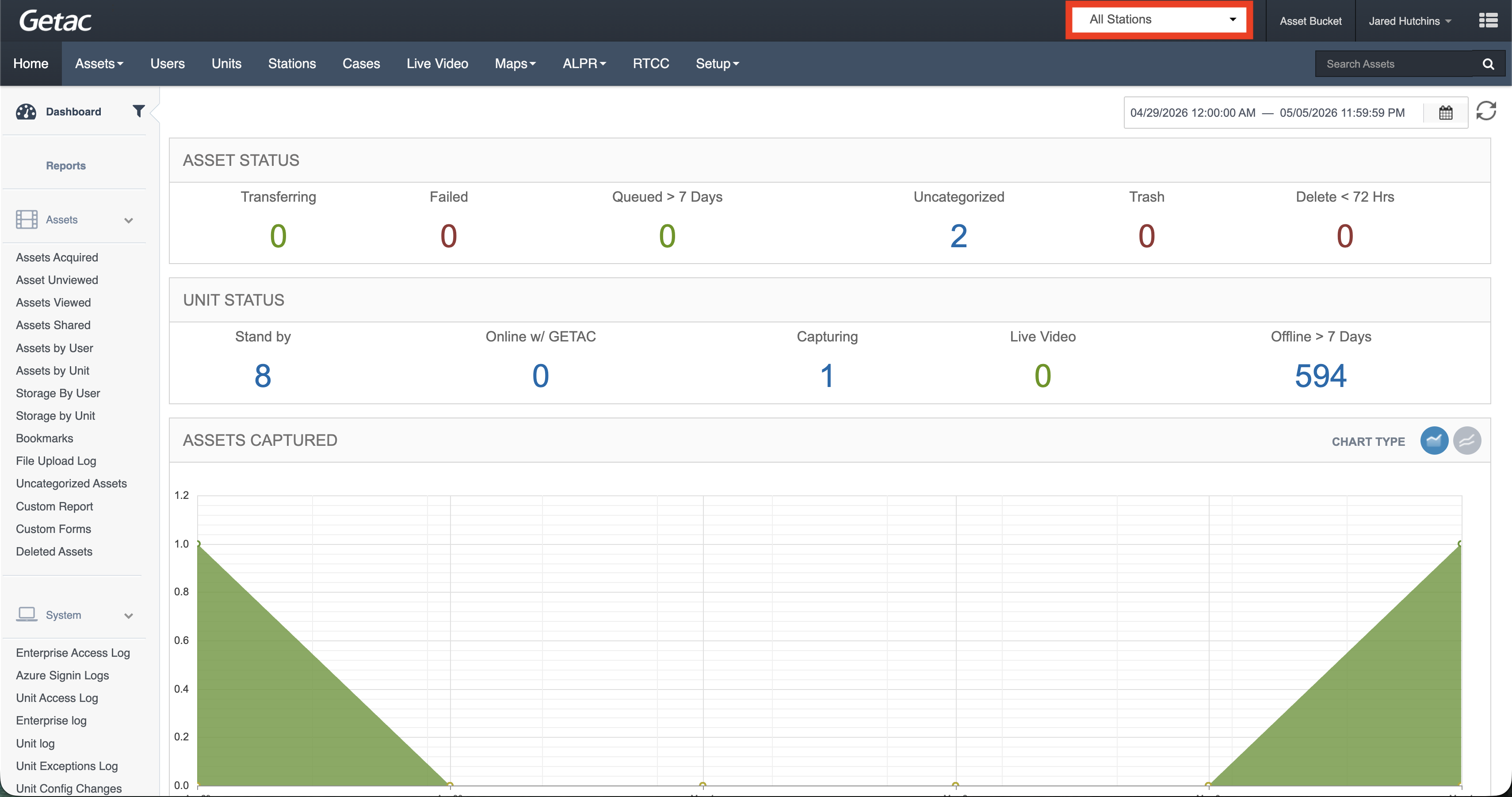
- Click the “Add or create a new station specific license” option.

- Select the station this license applies to.
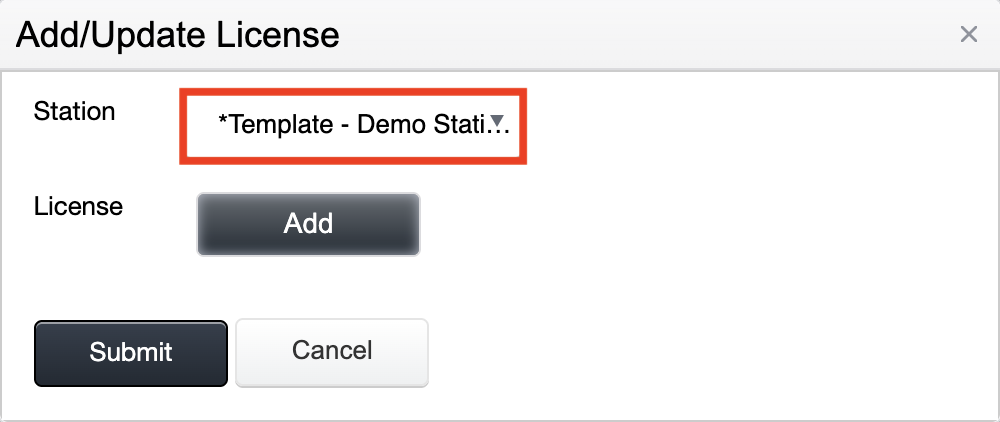
- Upload your provided license file.
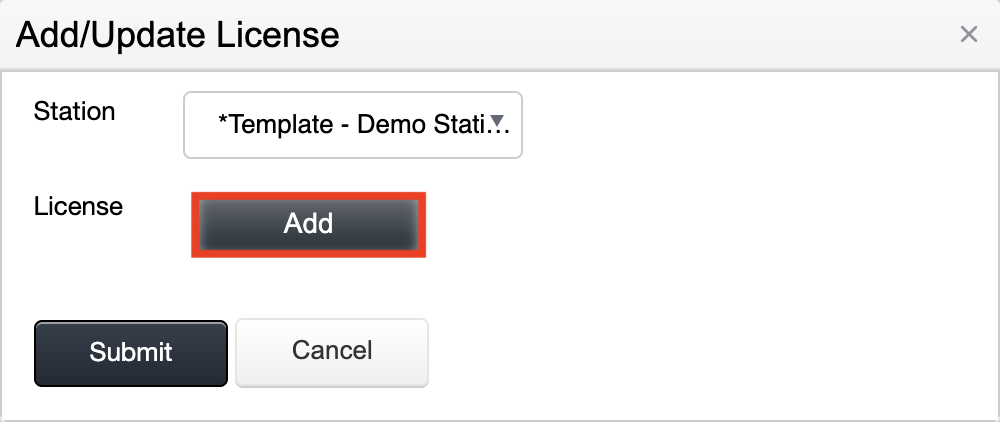
Expected Outcome
The Licensing table will update, indicating the new license options for the station or stations.

Notes/Important Information
- The submitted license must be successfully verified with Getac.
Info: Contact [email protected] if a licensed product or module is not active.

