Overview
The quick player allows for quick review of an individual Asset from the Main Assets page.
The quick player has the following limitations:
- Only ONE camera from an Asset Group can be reviewed at a time.
- BWC audio will NOT play with any other cameras.
- No map will display with a breadcrumb trail.
These features are available during playback on the Detailed Assets Page.
Training Video
Watch the video below for how to use the quick player:
Reasons for Viewing
If enabled, Users will be required to provide a Reason for Viewing before the Asset will play back in the Quick Player.
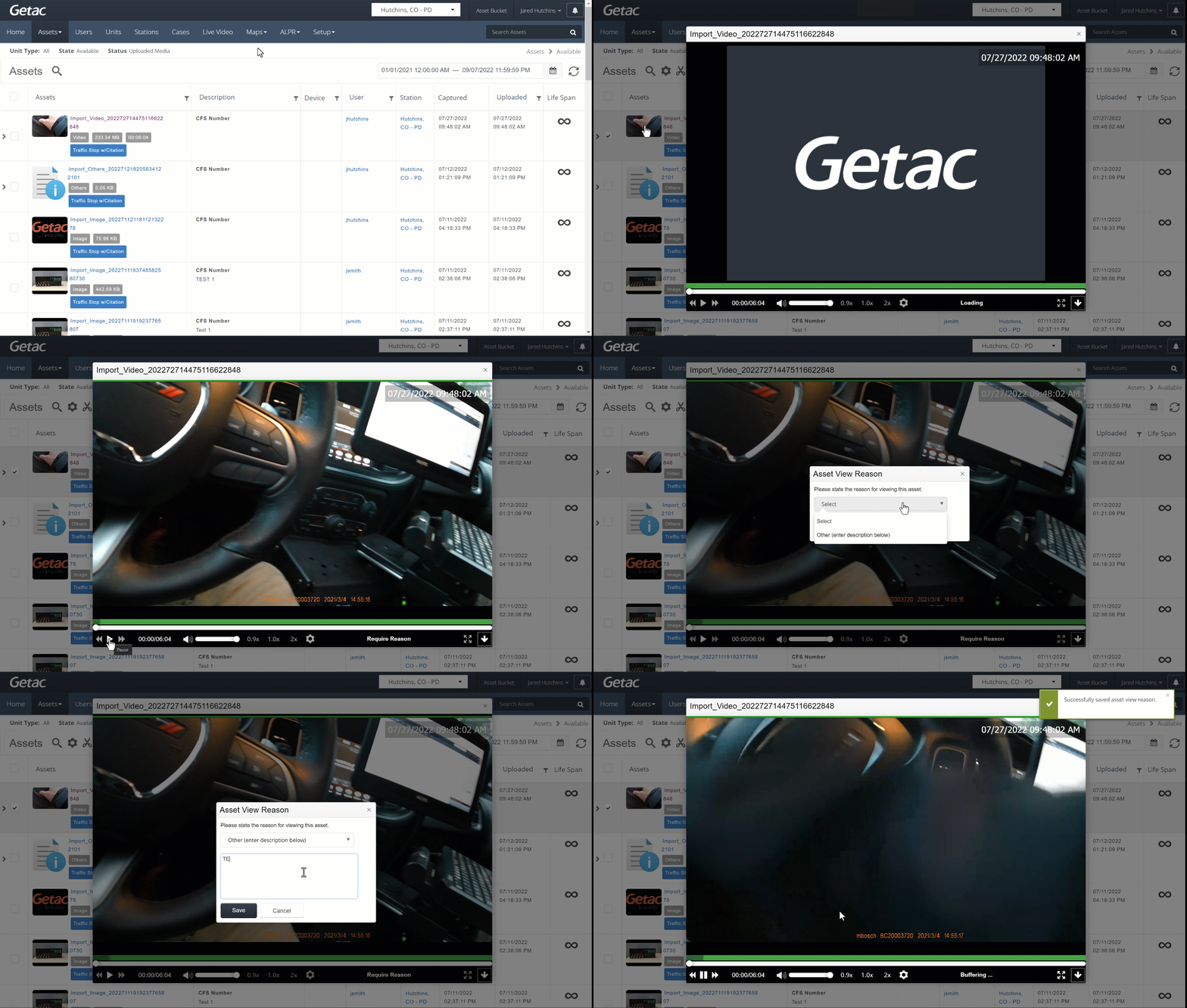
To add a Reason for Viewing, perform the following:
- Follow the instructions from the video for launching the Quick Player.
Note:
Require Reason will appear on the bottom right side of the Quick Player.
- Click the Play button.
- Select Other.
Note:
Custom reasons can be added by an administrator to the list from the Asset Viewing Reasons Template page.
- Type a Reason into the text box.
- Click Save.
Users must enter a new reason for viewing the same Asset once they've logged out and back in, but not during the same login session. For example, a User can watch a video, go to a different page in Getac Enterprise, then return to watch the same Asset without entering another reason.
See the image below for an example: